
How to Add Your NOL Card to Samsung Wallet (Step-by-Step Guide)
You can’t add new cards to Samsung Wallet like you would add a card to a bank, but you have to take an extra step.
To use your NOL card on a Samsung Galaxy phone, you first digitize your Silver and Gold NOL cards within the NOL Pay app. It will work on the digital card, then with Samsung Wallet and your phone’s NFC. Your phone will then act as your NOL card for metro gates, buses, trams, and many other Dubai locations.
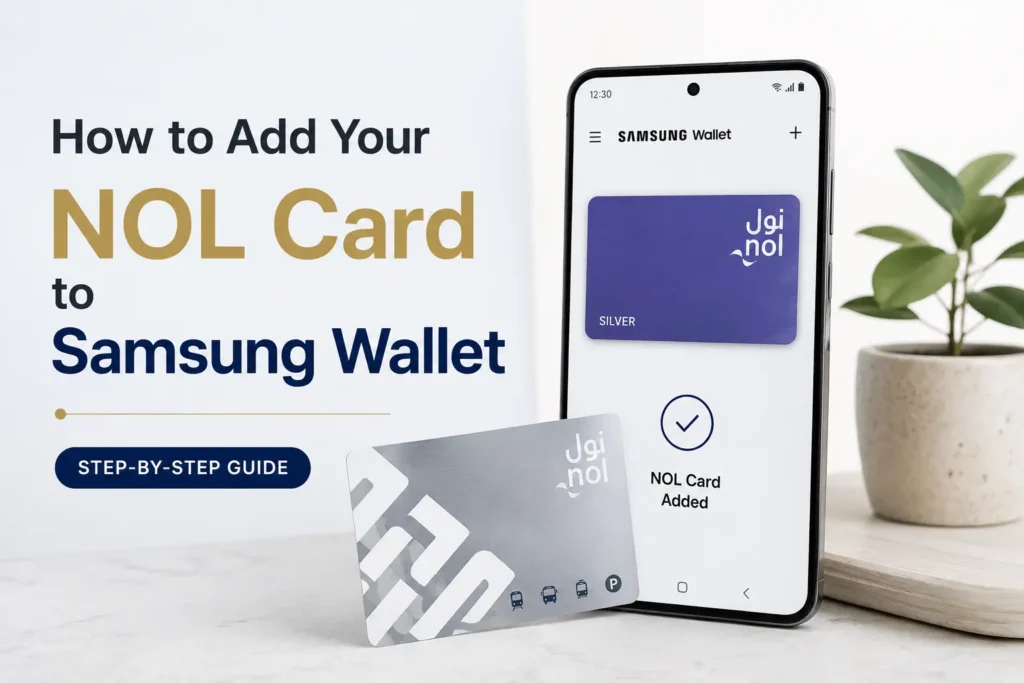
Samsung Wallet Support for NOL Cards
NOL card to Samsung Wallet Nol can be handled through NOL card to Samsung Wallet, but it cannot scan the card itself. Here is the procedure for this.
NOL card to Samsung Wallet ;
Create a digital copy of your Silver or Gold card with Nol Pay. Your Samsung phone securely stores this digital Nol card. Your phone can become a contactless NOL card with Samsung Wallet and NFC. NOL card to Samsung Wallet provides the payment interface at gates and readers, while Nol Pay manages the actual transport card.
Eligibility and Requirements Before You Start
Before you try to add your Nol card to Samsung Wallet, make sure you have all the necessary documents. If any of them are missing, the setup will not be successful.
1. Samsung Galaxy Phone with NFC Support
NOL card to Samsung Wallet that Your Samsung Galaxy device must support NFC and Samsung Wallet and must be running an updated version of both Android and the Samsung Wallet app.
NFC is enabled.
Settings → Connections → NFC and contactless payments → NFC ON
When tapping on Transit Gates in the same menu, set Samsung Wallet as your default connection to avoid conflicts with other digital wallets.
2. Silver and Gold NOL Cards Are Supported
The digitization card is available for;
- Silver Nol Card.
- Gold Nol Card
The Blue Personal Card and Red Ticket are not eligible for digital replacement. If you plan to use your phone for daily travel, you can review the Blue Card Monthly Pass Guide for complete information on pass features and prices.
3. Active NOL Pay App Linked to UAE Pass
Digitize your card using the Nol Pay app by installing or updating it from the Galaxy Store or Google Play, then log in using your UAE Pass credentials. Check your balance on Nol Pay. It also acts as your central hub for managing passes and viewing transactions. View the Nol Card recharge page to top up via card or online channels.
NOL Card Digitization Process Through NOL Pay
Follow all these necessary instructions. Most problems arise from leaving a screen too quickly. It is important to check all the information before starting the process.
Step 1: Download or Update the NOL Pay App
Open Google Play or Galaxy Store on your Samsung phone and search for the Nol app.
- Install or update the app.
- Open the Nol Pay app and log in using your UAE Pass.
The app will allow you to use NFC and any contactless permissions it requests.
Step 2: Begin the Card Digitization Process
- Open the app on Nol.
- Log in with UAE Pass. Click on Get my Nol Card on the home screen.
- Select Digitize my personal NOL card.
This will tell the app that you want to convert the plastic card on your phone to a digital card.
Step 3: Verify Your Card’s Eligibility
This notice shows that only Silver and Gold NOL cards can be digitized.
If your card is silver or gold, tap on Next. If your card is blue or red, you should continue using it physically. You will need to purchase a silver or gold card for NOL card to Samsung Wallet.
Step 4: Scan Your Physical NOL Card via NFC
Verify that your phone has NFC in good condition. Place your physical card flat on the back of the phone, keeping it still, and wait for the card to be read by the phone.
Meanwhile, the app imports securely.
- Your current balance, any fall, Monthly pass, Daily pass, or other travel products, Card identification, Security data.
If your app says it can’t recognize the card, see the troubleshooting section below.
Step 5: Confirm Deactivation of Your Physical NOL Card
When Nol Pay reads your card properly, it notifies you that;
- Once the digital Card is released, the physical cut on you becomes unfeasible.
- You will use this phone of yours to unlock the card.
After reviewing all the details, click Continue to confirm. At this point, you are committing to the digital version.
Step 6: Digital Card Issuance in Progress
The NOL pay sends the data to the RTA’s system and creates your new digital NOL card.
- It only takes a few minutes for us.
- You will see a notification in the app when the card is ready.
Your plastic card will not work at the gate or at the terminals at this time. If you need to withdraw money from a card you no longer want to use, follow the refund process to get a Nol-card refund.
How Samsung Wallet and NFC Power Your Digital NOL Card
The digital NOL card remains inside the secure element on the Samsung phone after it is created.
On supported UAE Galaxy devices;
- Open Samsung Wallet.
- Check out the transport or transit section.
- There, you will see the available NOL cards or the option to add or manage them, which is associated with the card created in the NOL card.
For the daily commute;
- Keep NFC open at all times.
- Verify that Samsung Wallet is set as the default offline app.
- In such cases, you just need to wake the phone, then tap the Nol Reader and Back.
- If the gate doesn’t respond, open Samsung Wallet or Nol Pay and then tap again.
Then your phone works like a normal mobile card.
- Entry and exit gates at Metro and Tram stations.
- Bus card validators across the network.
- Parking payment machines that support NOL cards.
- Retail stores, merchants, and kiosks that accept NOL payments.
Checking your current balance is still the easiest and most efficient way to quickly review your current funds without opening the app every time.
How to Use Your Digital NOL Card for Daily Travel
Once your digital NOL card is set up, using it becomes part of your daily routine.
Before Leaving Home
- Make sure NFC is turned on on your smartphone.
- Check your digital NOL card balance or confirm that your travel pass is active using the NOL Pay app or a quick online balance check.
At Metro Gates or Bus Validators
- Wake up your phone screen.
- Place the back of your phone flat against the card reader.
- Wait for the beep or green light, then continue your journey.
For Frequent Travelers
If you use public transport for your daily commute, consider purchasing a monthly NOL pass. Your digital Nol Card can store the pass and allows unlimited travel for 30 days, making daily travel easier.
Key Limitations and Rules
The rules for digital null cards are strict; it is best to understand them well before changing them.
1. Your Physical NOL Card Is Permanently Deactivated
After digitization:
- Original condition card permanently disabled.
- You cannot recover or reuse the same piece of plastic.
- If you want an additional card, you will need to purchase and load a new NOL card.
2. You Can Hold Only One Digital NOL Card at a Time
You can generally only use one digital NOL card per account or device.
If you accidentally digitize a card that has no balance;
- Submit a request to refund the remaining balance on the card.
- Please note that a small processing fee may be charged during the refund process.
- After receiving the refund, you can repeat the digitization process using the correct NOL card.
Visit the Nol Card Refund page to see the fee and time details.
3. Device Compatibility and Regional Restrictions
Support for the digital NOL card feature depends on several factors, including:
- The specific Samsung Galaxy model you are using.
- The installed firmware and Samsung Wallet app version.
- The region or country selected on your device and Samsung account.
If you change locations, change SIMs, or use a device that does not support Nol in Samsung Wallet, some functions may stop working. Always keep your phone Nol and Samsung Wallet updated.
4. Blue and Red NOL Cards Are Not Eligible for Digitization
Unfortunately ;
- Blue personalised cards
- Red paper tickets
Cannot be converted into a digital card on Samsung Wallet.
If you use benefits that require a Blue Card, such as Student Citizens or Eligible Citizens, you may also need to keep your physical Blue Card. This applies even if you use a separate digital Silver or Gold Blue Card for your daily travel.
Troubleshooting Common in NOL card to Samsung Wallet
If the NOL Pay app is having trouble reading your card, try these troubleshooting steps:
- Make sure NFC is enabled on your phone.
- Remove any thick, metal, or wallet-style phone cases that could interfere with the NFC signal.
- Slowly place the card against the back of your phone until you locate the NFC reading area or “sweet spot.”
- Keep both the card and your phone completely still for a few seconds while the app scans the card.
If your NOL card is torn, bent, or heavily damaged, it may not scan, in which case you may need to go through the digitization process again, or you may need to replace the card at the ticket office first.
Transit Gate Not Responding to Phone Tap
Before trying again, go through this quick checklist:
- Make sure NFC is enabled on your phone.
- Confirm that Samsung Wallet is set as your default contactless payment app.
- Remove any thick or metallic phone case that could interfere with the NFC signal.
- Hold the back of your phone flat against the reader instead of using the edge of the device.
- Verify that your digital NOL card has sufficient balance or an active travel pass.
If everything looks correct, open Samsung Wallet or Nol pay on the screen and try again. If multiple stations fail in the same way, contact support or go to the RTA Ticket Office.
Wrong NOL Card Was Digitized: How to Fix It
If you have changed a nol card, it means you did not want to use it.
- You can use the Nol Pay app of the RTA service channel to request a refund of the remaining amount on this digital card.
- Be aware of the refund fee.
- Once the refund is complete, repeat the digitization steps with the correct Silver or Gold card. This process is the same as any other nol-refund request.